
First prompt
Make a stop motion previewer. Import images, reorder frames, set the playback speed in fps, and play them in a loop.
- App name
- Tiny Frames
The app it made
- In the first app, tapping “Import images” did nothing. It was put to use after three more fix requests for picking photos, the empty-screen message, and saving.
- Adding 6 photos one at a time from the phone’s photo picker showed “6 FRAMES,” and they were played at 12 fps.
- The fps was changed to 4 to play it slowly, and frame 4 was moved to the left, then put back in its place.
Change request
Add onion skin. Show the previous frame at 30 percent opacity over the selected frame, with an on and off toggle. Keep my saved frames, order and fps.
After the change
- An “Onion: off” button appeared. With frame 4 selected, turning it on showed frame 3 faintly on top, and turning it off made it go away.
- The 6 photos added earlier and the 4 fps setting were still there after the change.
When reopened
Save, close, and open it again, and the added photos come back with the message “Your saved frames are ready.” This was checked with 1 photo.
Try writing it like this for a similar app
- Make a stop motion preview app. Let me add photos in order, set the fps, and play them in a loop.
- Show the previous frame semi-transparent over the selected frame.
- Let me set how many times each frame repeats.
These are sample prompts, not real cases. What you get depends on what you ask for.
How to make it
- Type the app you want in one sentence in the box on the home screen.
- Answer “Give your app a name.” with the name you want.
- From the features BYVE AI suggests, pick only the ones you want.
- Tap “Build for 1 token” to build the app, then tap “Open app” to use it right away.
- Write what you want to change in the chat, and the same app gets updated. A change also uses 1 token.
Good to know
- Each new app or change uses 1 token. You get 2 tokens when you first install, and you can get up to 3 more every 24 hours by watching ads. There are no in-app purchases.
- The apps you make and what you enter are saved on your phone, and apps you’ve already made open without internet. Features that fetch outside information, like weather and maps, need internet.
- It works on Android 8.0 or later and iOS 17.0 or later, and there’s no sign-up.


Android & iOS · Free · No sign-up
More examples

Make a guitar chord practice app with one sentenceBrazil · Music practice

Make a river boat travel time calculator app with one sentenceSuriname · Calculator
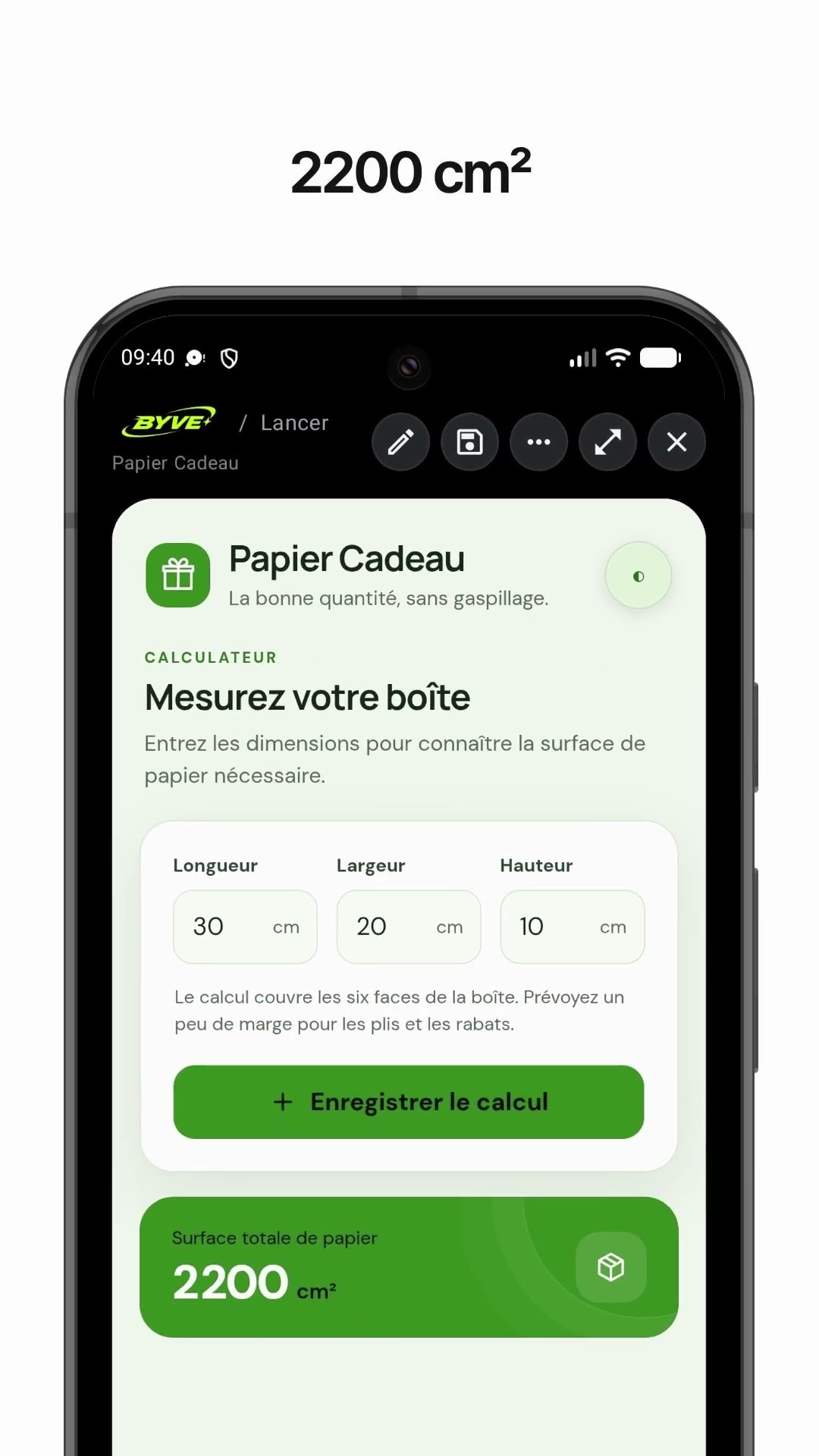
Make a gift wrap paper calculator app with one sentenceSaint Pierre and Miquelon · Calculator
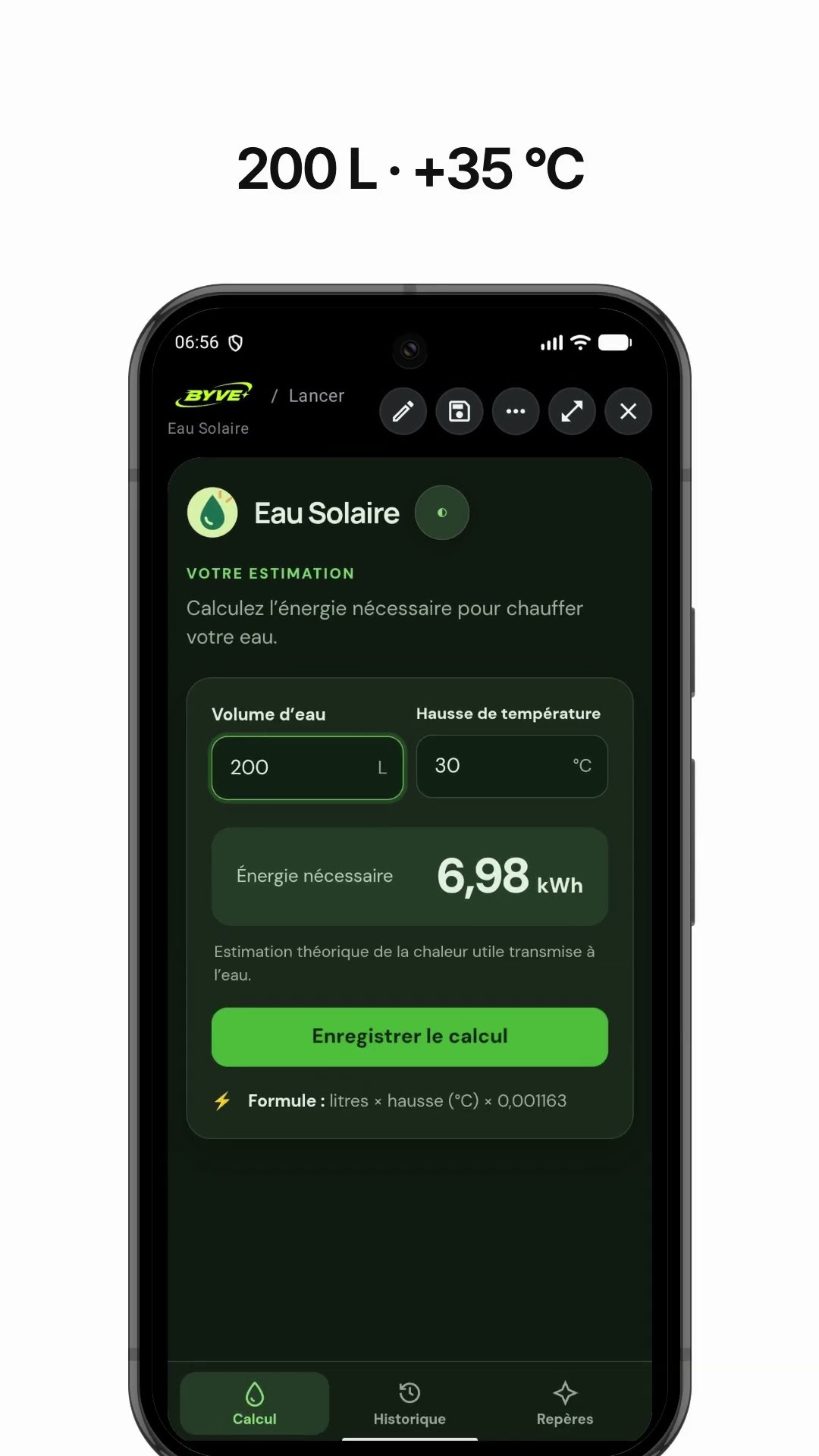
Make a solar water heater energy calculator app with one sentenceGuadeloupe · Energy calculator

Make a golden ratio canvas calculator app with one sentenceSaint Lucia · Calculator

Make a parade order permutation app with one sentenceMartinique · Calculator
This example in other languages: 한국어